Home Blog Page 105

How to Apply for Kuda Bank Overdraft

0

Do you intend to make use of the Kuda bank overdraft? If yes, you will get all the information you need on how to apply for the Kuda bank overdraft. However, the Kuda bank overdraft feature is different from the loan.

How to Apply for Kuda Bank Overdraft

This bank currently has up to 3 million and counting users across the country. They are one of the first legibly known online banks in Nigeria. Well, you will be able to find tons of interesting features in the Kuda app that users can engage in. One of the amazing features you can find in the Kuda bank application is Overdraft.

 What is Kuda Bank Overdraft

Kuda Bank overdraft is a short-term credit that helps users to keep their life running smoothly. This means if you do not have enough money in your account, you can trigger your overdraft to covet your expenses.

Nevertheless, you will pay back when money is added to your Kuda account bank. With the Kuda bank overdraft feature, you will be able to get money through your current account by taking out more than you have in the account.

How does Kuda bank overdraft work?

The way Kuda bank overdraft works is very easy to understand. As a user of Kuda, you must have created an account and verified it. Moreover, you are most likely to use your account to make transfers, pay bills and buy airtime and data.

If you are an eligible user of the bank, you will be able to get the overdraft offer. The overdraft interest is 0.3% daily to be paid back in 30 – 90 days. The period you get depends on the amount of overdraft support you got.

Check out: How to Borrow Money From Kuda Bank

How to Apply for Kuda Bank Overdraft

To apply for the Kuda Bank overdraft you need to be an active user of the app at 0.3% daily. Below are the steps you need to follow:

  • On your mobile device, lunch the Kuda bank application.
  • Go to the Kuda “Borrow” feature option.
  • You will see loan and overdraft, click on “overdraft”
  • Then tap the Next button.
  • Kuda bank will show you the highest amount they can offer you as an overdraft.
  • From the amount limit you get; type the amount you want to borrow then tap Done.
  • Then, confirm with your transaction pin, fingerprint, or Face ID.
  • Click okay and you will receive it.

Kuda Overdraft does not have a maximum amount, the amount you see on your overdraft will depend mainly on the inflow and outflow of money in your account.

Who can apply for Kuda Bank Overdraft?

Kuda Overdrafts is only available to users who make use of their Kuda account actively. To be eligible, you need to make sure your account is also upgraded with your Bank Verification Number (BVN), and a valid ID. However, you must use your Kuda account actively for over a couple of months.

Conclusion

Kuda bank overdraft can be very handy, it can help in times of need when you are out of cash. You have to be eligible to make use of the overdraft feature. Well, you need to fund your Kuda bank to pay what you owe automatically.  Kuda Bank’s Overdraft has an interest rate of 0.3% daily on any amount you borrow.

Check out: 

How to Restart Vivo Y52/Y52s/Y52T

0

In a situation where you notice some type of hanging or your Vivo 52s is thinking more time for you to navigate through it like before, the best thing to do is reboot your phone. This could occur due to overload; you can restart your phone quickly to free up its memory. However, you just have to follow a few steps that will direct you on how to restart your phone.

How to Restart Vivo Y52/Y52s/Y52T

In the process of restarting your Vivo Y52/Y52s, no date will be lost, it is just like (turning off / power offing) your device and on again.  Moreover, you just have to make sure you have all the necessary things you need to switch it on again like (the PIN code of the SIM card, the Patter, or Password) if needed.

Why Can’t I Restart My Vivo Y52/Y52s/Y52T

There are some reasons why you may have issues in restring your Vivo Y52/Y52s/Y52T. It may be that some internal component such as the motherboard, memory, screen, or even your phone Power button is damaged. Moreover, you will have to repair it or resort to a warranty. That is if you have not followed the steps available below.

How to Restart Vivo Y52/Y52s

All you just need is to follow the steps below to restart your Vivo Y52/Y52s/Y52T, it won’t take more than 2 minutes. Here are the steps:

  1. Begin by pressing and holding the power/unlock button on the vivo Y52/Y52s until a screen with various Options appears.
  2. In the options that are displaying on the screen of your Vivo Y52/Y52s tap on “Restart”. if any massage comes up for confirmation, press allow/accept.
  3. Once you have done that your phone will turn off and on again in the act of rebooting, just wait for a few seconds or minutes.

That is all you have to do to restart your Vivo Y52/Y52s. it may require you to enter the PIN code of the SIM card, the Patter, or the Password, if there is one.

About Vivo Y52

The Dimensity in Vivo Y52 is 700, it is Octa Core, 2.2GHz Processor, 4 GB Ram, and 128 GB inbuilt. It supports dual Sim, 3G, 4G, 5G VoLTE, NFC, and Wi-Fi.  The Battery is 5000 mAh with 18W Fast Charging, Vivo Y52 is 6.58 inches, 1080 x 2408 px, Display with Water Drop Notch, and 48 MP + 2 MP Dual Rear & 8 MP Front Camera. It also supports Android v11 and a memory card.

About Vivo Y52s

The Dimensity in Vivo Y52s is 720, it is Octa Core, 2GHz Processor, 6 GB Ram, and 128 GB inbuilt. It supports dual Sim, 3G, 4G, 5G VoLTE, NFC, and Wi-Fi.  The Battery is 5000 mAh with 18W Fast Charging, Vivo Y52s is 6.58 inches, 1080 x 2400 px, Display with Water Drop Notch, and 48 MP + 2 MP Dual Rear & 8 MP Front Camera. It also supports Android v10.

About Vivo Y52T

The Dimensity in Vivo Y52T is 700, it is Octa Core, 2 GHz Processor, 8 GB Ram, and 128 GB inbuilt. It supports dual Sim, 3G, 4G, 5G VoLTE, NFC, and Wi-Fi.  The Battery is 5000 mAh with 18W Fast Charging, Vivo Y52T is 6.51 inches, 720 x 1600 px, Display with Water Drop Notch, and 13 MP + 2 MP Dual Rear & 8 MP Front Camera. It also supports Android v12.

Check Out: 

How to Restart Vivo Y35/Y35m

0

In a situation where you notice some type of hanging or your Vivo Y35 is thinking more time for you to navigate through it like before, the best thing to do is reboot your phone. This could occur due to overload; you can restart your phone quickly to free up its memory. However, you just have to follow a few steps that will direct you on how to restart your phone.

How to Restart Vivo Y35/Y35m

In the process of restarting your Vivo Y35/Y35m, no date will be lost, it is just like (turning off / power offing) your device and on again.  Moreover, you just have to make sure you have all the necessary things you need to switch it on again like (the PIN code of the SIM card, the Patter, or Password) if needed.

Why Can’t I Restart My Vivo Y35/Y35m

There are some reasons why you may have issues in restring your Vivo Y35/Y35m. It may be that some internal component such as the motherboard, memory, screen, or even your phone Power button is damaged. Moreover, you will have to repair it or resort to a warranty. That is if you have not followed the steps available below.

How to Restart Vivo Y35/Y35m

All you just need is to follow the steps below to restart your Vivo Y35/Y35m, it won’t take more than 2 minutes. Here are the steps:

  1. Begin by pressing and holding the power/unlock button on the vivo Y35/Y35m until a screen with various Options appears.
  2. In the options that are displaying on the screen of your Vivo Y35/Y35m tap on “Restart”. if any massage comes up for confirmation, press allow/accept.
  3. Once you have done that your phone will turn off and on again in the act of rebooting, just wait for a few seconds or minutes.

That is all you have to do to restart your Vivo Y35/Y35m. it may require you to enter the PIN code of the SIM card, the Patter, or the Password, if there is one.

About Vivo Y35

The Snapdragon in Vivo Y35 is 680 5G, it is Octa Core, 2.4 GHz Processor, 8 GB Ram, and 128 GB inbuilt. It supports dual Sim, 3G, 4G, 5G VoLTE, and Wi-Fi.  The Battery is 5000 mAh with 44W Fast Charging, Vivo Y35 is 6.58 inches, 1080 x 2408 px, 90 Hz Display with Water Drop Notch, and 50 MP + 2 MP + 2 MP Triple Rear & 16 MP Front Camera. It also supports Android v12 and a memory card.

About Vivo Y35m

The Dimensity in Vivo Y35m is 700 5G, it is Octa Core, 2.2 GHz Processor, 4 GB Ram, and 128 GB inbuilt. It supports dual Sim, 3G, 4G, 5G VoLTE, and Wi-Fi.  The Battery is 5000 mAh with 15W Fast Charging, Vivo Y35m is 6.51 inches, 720 x 1600 px Display with Water Drop Notch, and 13 MP + 2 MP + 2 MP Dual Rear & 5 MP Front Camera. It also supports Android v13 and a memory card.

Check Out

How to Restart Vivo Y55s

0

In a situation where you notice some type of hanging or your Vivo 55s is thinking more time for you to navigate through it like before, the best thing to do is reboot your phone. This could occur due to overload; you can restart your phone quickly to free up its memory. However, you just have to follow a few steps that will direct you on how to restart your phone.

How to Restart Vivo Y55s

In the process of restarting your Vivo y55s no date will be lost, it is just like (turning off / power offing) your device and on again.  Moreover, you just have to make sure you have all the necessary things you need to switch it on again like (the PIN code of the SIM card, the Patter, or Password) if needed.

Why Can’t I Restart My Vivo Y55s

There is a number of reasons why you may have issues in restring your Vivo Y55s. It may be that some internal component such as the motherboard, memory, screen, or even your phone Power button is damaged. Moreover, you will have to repair it or resort to a warranty. That is if you have not followed the steps available below.

How to Restart Vivo Y55s

All you just need is to follow the steps below to restart your Vivo Y55s, it won’t take more than 2 minutes. Here are the steps:

  1. Begin by pressing and holding the power/unlock button on the vivo Y55s until a screen with various Options appears.
  2. In the options that are displaying on the screen of your Vivo Y55 tap on “Restart”. if any massage comes up for confirmation, press allow/accept.
  3. Once you have done that your phone will turn off and on again in the act of rebooting, just wait for a few seconds or minutes.

That is all you have to do in order to restart your Vivo Y55s. it may require you to enter the PIN code of the SIM card, the Patter, or the Password, if there is one.

About Vivo Y55s

The Dimensity in Vivo Y55s is 700 5G, it is Octa Core, 2.4GHz Processor, 4 GB Ram, and 128 GB inbuilt. It supports dual Sim, 3G, 4G, 5G VoLTE, NFC, and Wi-Fi.  The Battery is 5000 mAh with 18W Fast Charging, Vivo Y55s is 6.58 inches, 1080 x 2408 px, Display with Water Drop Notch, and 50 MP + 2 MP + 2 MP Triple Rear & 8 MP Front Camera. It also supports Android v12 and a memory card.

Check out:

How to Screen Record on Vivo Y52/Y52s/Y52T

0

Do you want to screen record with your Vivo Y52 and you are finding is default? All you need is just a few guidelines. Then you will be able to screen record at any time you wish to. In the act of screen recording with sound on your Vivo Y52, you will be able to perform a tutorial or show an acquaintance how to perform certain tasks.

How to Screen Record on Vivo Y52/Y52s/Y52T

It can be of help to you if you just want to send it or upload it to any platform like YouTube or any other social network/media. In case when you come across a video you cannot save you will be able to screen-recode it with ease.

Why can’t I Screen Record on Vivo Y52/Y52s/Y52T

There are some reasons why your Vivo Y52 may not screen record as it is spouse to. Here are the reasons why your Vivo device won’t screen record:

  1. You must check out your “Screen Time” and ensure the feature is not restricted.
  2. make sure you have enough storage on your phone. You will not be able to start or save screen records on your phone if you are out of space.
  3. Check if you are in power saving mode, you can’t access that feature in power saving mode.
  4. Try to update your phone version to the latest.
  5. It could to an error imposed by developers.

Those are the thing that can make you not screen record with your Vivo device.

How to Screen Record on Vivo Y52/Y52s/Y52T

Follow the steps that are provided below to screen record on Vivo Y52:

  1. On your Vivo Y52 home screen swipe up from the bottom of the screen to bring up Control Center.
  2. Then find “S-capture” and click on it.
  3. Enter Record screen (Screen recording). Make sure that bringing it up on an app interface is turned on (Setting – More settings – Control Center).

Once you have entered the record screen your screen record will begin automatically.  You can try using a party app to screen record.

Screen Record App for Vivo Y52/Y52s/Y52T

  1. Open Google Play Store on your device.
  2. Search for Du recorder.
  3. Install the app and allow all permission.
  4. Once you have installed it, you can now follow the remaining onscreen instructions to record calls on your Vivo Y52.

About Vivo Y52

The Dimensity in Vivo Y52 is 700, it is Octa Core, 2.2GHz Processor, 4 GB Ram, and 128 GB inbuilt. It supports dual Sim, 3G, 4G, 5G VoLTE, NFC, and Wi-Fi.  The Battery is 5000 mAh with 18W Fast Charging, Vivo Y52 is 6.58 inches, 1080 x 2408 px, Display with Water Drop Notch, and 48 MP + 2 MP Dual Rear & 8 MP Front Camera. It also supports Android v11 and a memory card.

About Vivo Y52s

The Dimensity in Vivo Y52s is 720, it is Octa Core, 2GHz Processor, 6 GB Ram, and 128 GB inbuilt. It supports dual Sim, 3G, 4G, 5G VoLTE, NFC, and Wi-Fi.  The Battery is 5000 mAh with 18W Fast Charging, Vivo Y52s is 6.58 inches, 1080 x 2400 px, Display with Water Drop Notch, and 48 MP + 2 MP Dual Rear & 8 MP Front Camera. It also supports Android v10.

About Vivo Y52T

The Dimensity in Vivo Y52T is 700, it is Octa Core, 2 GHz Processor, 8 GB Ram, and 128 GB inbuilt. It supports dual Sim, 3G, 4G, 5G VoLTE, NFC, and Wi-Fi.  The Battery is 5000 mAh with 18W Fast Charging, Vivo Y52T is 6.51 inches, 720 x 1600 px, Display with Water Drop Notch, and 13 MP + 2 MP Dual Rear & 8 MP Front Camera. It also supports Android v12.

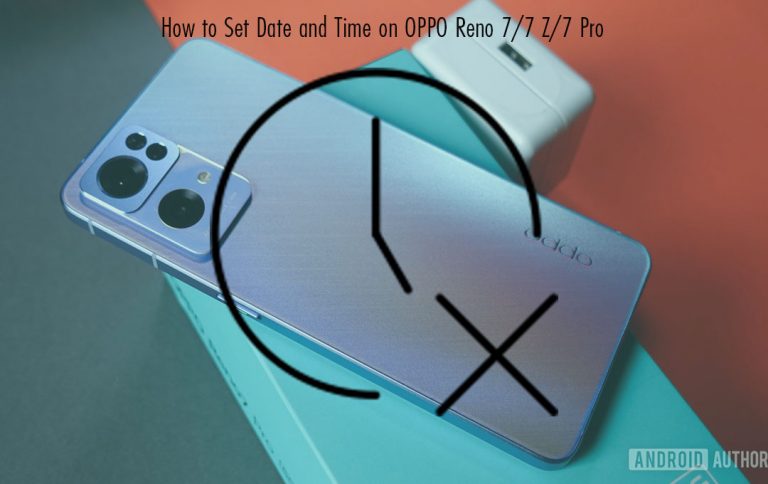
How to Set Date and Time on OPPO Reno 7/7 Z/7 Pro

0

Why is my OPPO Reno 7/7 Z/7 Pro Showing the Wrong Time? Well, you can get the wrong time on your OPPO Reno sometimes. This situation happens when the phone is newly shut down. However, you may be missing alarms because of the incorrect time. You can do a few things to get your time back.

How to Set Date and Time on OPPO Reno 7/7 Z/7 Pro

Yes, the automatic time and date setting is a convenient feature on Android that can be of help to you. You don’t have to worry about setting the time every single time you shut down your phone.

Why is my OPPO Reno 7/7 Z/7 Pro Showing the Wrong Time

Three main reasons can make your OPPO Reno 7/7 Z/7 Pro show the wrong time, they are listed below:

  1. It may be that you accidentally turned off the Automatic time and date settings. While at it, you may have unintentionally entered the numbers.
  2. You may have put in the wrong time zone and your Automatic date and time setting turned off.
  3. The error might be from your carrier, connecting to a Wi-Fi network from a different provider, or something to do with your location.

There will be steps you can follow to fix your incorrect time on your oppo Reno device, you just need to read through the steps below.

How to Set Date and Time on OPPO Reno 7/7 Z/7 Pro

Follow the steps available below to set your phone time up to date:

  1. On your OPPO Reno 7/7 Z/7 Pro home screen swipe down from the top.
  2. Click on the “setting icon” from the drop-down menu.
  3. Find “Additional setting” and tap on it.
  4. Enter “Date & Time”
  5. Turn on the “automatic date, time, and time Zone update”. Then click the indicator next to “Use network-provided time” to turn on the function.

Once you go back to the home screen you will see the correct time. So, you must follow the above steps to set your Oppo Reno 7/7 Z/7 Pro date and time.

About OPPO Reno 7 Z

The snapdragon in OPPO Reno 7 Z is 695, it is Octa Core, 2.2 GHz Processor, 8 GB Ram, and 128 GB inbuilt. It supports dual Sim, 3G, 4G, 5G, VoLTE, Wi-Fi NFC.  The Battery is 4500 mAh with 33W Fast Charging, OPPO Rena 7 Z is 6.43 inches, 1080 x 2400 px Display with Punch Hole and 64 MP + 2 MP + 2 MP Triple Rear & 16 MP Front Camera. It also supports a memory card and Android v11.

About OPPO Reno 7

The Dimensity in OPPO Reno 7 is 900, it is Octa Core, 2 GHz Processor, 8 GB Ram, and 256 GB inbuilt. It supports dual Sim, 3G, 4G, 5G, VoLTE, Wi-Fi NFC.  The Battery is 4500 mAh with 65W Fast Charging, OPPO Rena 7 is 6.55 inches, 1080 x 2400 px, 90 Hz Display with Punch Hole and 50 MP +8 MP + 2 MP Triple Rear & 32 MP Front Camera. It also supports Android v11 and memory cards up to 1 TB.

About OPPO Reno 7 Pro

The Dimensity in OPPO Reno 7 Pro is 1200-Max, it is Octa Core, 2.85 GHz Processor, 12 GB Ram, and 256 GB inbuilt. It supports dual Sim, 3G, 4G, 5G, VoLTE, Wi-Fi NFC.  The Battery is 4500 mAh with 65W Fast Charging, OPPO Rena 7 Pro is 6.55 inches, 1080 x 2400 px, 90 Hz Display with Punch Hole and 50 MP +8 MP + 2 MP Triple Rear & 32 MP Front Camera. It also supports Android v11 and a memory card.

Check out:

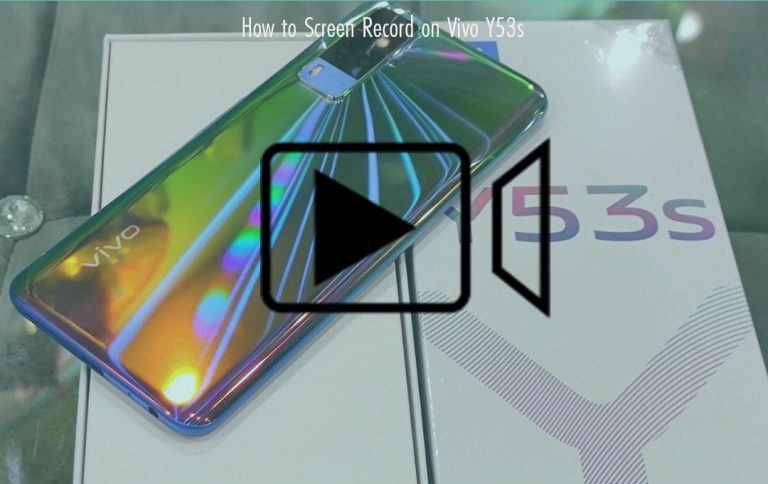
How to Screen Record on Vivo Y53s

0

Have you tried to screen record on your Vivo Y53s and you are finding it difficult? All you need is just a few guidelines. Then you will be able to screen record at any time you wish to. In the act of screen recording with sound on your Vivo Y53s, you will be able to perform a tutorial or show an acquaintance how to perform certain tasks.

How to Screen Record on Vivo Y53s

It can be of help to you if you just want to send it or upload it to any platform like YouTube or any other social network/media. In case when you come across a video you cannot save you will be able to screen-recode it with ease.

Why can’t I screen record on Vivo Y53s?

There are some reasons why your Vivo Y53s may not screen record as it is spouse to. Here are the reasons why your Vivo device won’t screen record:

  1. You have to check out your “Screen Time” and make sure the feature is not restricted.
  2. make sure you have enough storage on your phone. You will not be able to start or save screen records on your phone if you are out of space.
  3. Check if you are in power saving mode, you can’t access that feature in power saving mode.
  4. Try to update your phone version to the latest.
  5. It could to an error imposed by developers.

Those are the thing that can make you not screen record with your Vivo device.

How to Screen Record on Vivo Y53s

Follow the steps that are provided below to screen record on Vivo Y53s:

  • On your Vivo Y53s home screen swipe up from the bottom of the screen to bring up Control Center.
  • Then find “S-capture” and click on it.
  • Enter Record screen (Screen recording). Make sure that bringing it up on an app interface is turned on (Setting – More settings – Control Center).

Once you have entered the record screen your screen record will begin automatically.  You can try using a party app to screen record.

Screen Record App for Vivo Y53s

  • Open Google Play Store on your device.
  • Search for Du recorder.
  • Install the app and allow all permission.
  • Once you have installed it, you can now follow the remaining onscreen instructions to record calls on your Vivo Y53s.

About Vivo Y53s

The Helio in Vivo Y53s is G80, it is Octa Core, 2GHz Processor, 8 GB Ram, and 128 GB inbuilt. It supports dual Sim, 3G, 4G, VoLTE, NFC, and Wi-Fi.  The Battery is 5000 mAh with 19W Fast Charging, Vivo Y53s is 6.58 inches, 1080 x 2408 px, Display with Water Drop Notch, and 64 MP + 2 MP + 2 MP Triple Rear & 16 MP Front Camera. It also supports Android v11 and a memory card up to 1 TB.

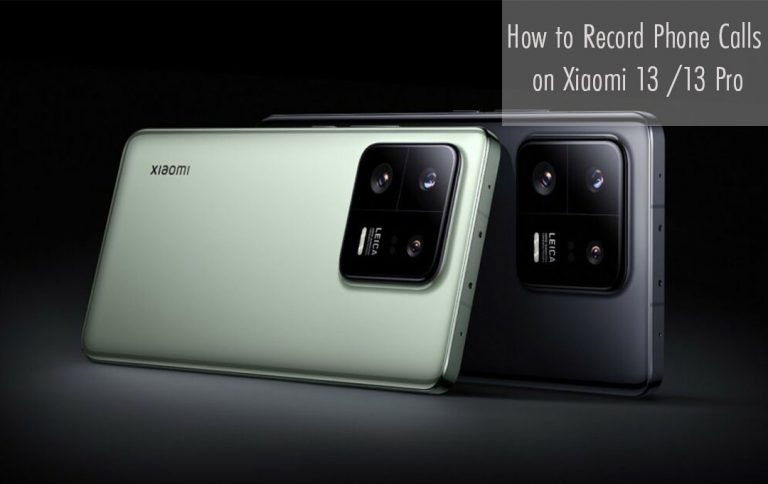
How to Record Phone Calls on Xiaomi 13/13 Pro

0

Xiaomi 13 /13 Pro users will one day wish to record a phone call for any purpose. Xiaomi 13 users will want to know if they can record calls. They will also need steps on how to record phone calls. As well as the Xiaomi 13 call recording setting. Recording a phone call is a good idea, you can get back to it to remember what the discussion is about.

How to Record Phone Calls on Xiaomi 13 /13 Pro

However, make sure you know your local laws and regulations about call recording. it is better to find out if it is legal in your location or country and ensure you have third-party consent.

Does Xiaomi 13 /13 Pro Support call recording?

Yes, you can record calls with your Xiaomi 13. They support call recording and you can enable it on your device with ease. you just have to keep reading through this page to know how the Xiaomi 13 call recording works.

Why can’t I record calls on my 13 /13 Pros?

If you are making use of the global version that is one of the main reasons you can’t record calls on your Xiaomi 13. Furthermore, the Global version of the Redmi phone comes installed with google Dialer instead of the Xiaomi contact and Dialer app. You can access call recordings on Google dialer as of now.  Google dialer is working on including it on their app.

Nevertheless, Google Dialer now has support for call recording. but it is on yet available in all countries. You will be able to use the option of recording calls if it is available in your country. You can try to update your device to the latest Android version to get the Option.

How to Record Calls on Xiaomi 13 /13 Pro

You can make use of the steps below if you are using the EU MIUI version on your device. The steps are provided below:

  1. Lunch the Phone app on your Xiaomi
  2. Click the “three-line menu” in your Phone app, it is located at the bottom left corner.
  3. After that, select “Call Recording” from the menu.
  4. Now enable the “Call Recording Notification” and “Record calls Automatically” options
  5. You can also set your app to record the number of your choice. All you need to do is to click on the Number(s) selected – Custom List – Add Numbers.

If you do not find these features on your phone, you can make use of a second-party app.

Xiaomi 13 /13 Pro Call Recording App.

  1. Open Google Play Store on your device.
  2. Search for the Cube ACR app.
  3. Install the app and allow all permission.
  4. Once you have installed it, You can now follow the remaining onscreen instructions to record calls on your Xiaomi 13 /13 Pro.

About Xiaomi 13 Pro

The Xiaomi 13 Pro is the advanced version of the Xiaomi 13 smartphone. This flagship device comes with a beautiful body design that features a screen display size of 6.73 inches, 108.9 cm2 (~89.6% screen-to-body ratio) with 1440 x 3200 pixels, 20:9 ratio (~522 PPI density) under LTPO OLED, 1B colors, 120Hz, Dolby Vision, HDR10+, 1200 nits (HBM), 1900 nits (peak).

The chipset set is powered by Qualcomm SM8550 Snapdragon 8 Gen 2 (4 nm) and features Octa-core (1×3.2 GHz Cortex-X3 & 2×2.8 GHz Cortex-A715 & 2×2.8 GHz Cortex-A710 & 3×2.0 GHz Cortex-A510). It all so has an IP68 dust/water resistant (up to 1.5m for 30 mins), a Li-Po 4820 mAh, non-removable that comes with both fast and wireless charging.

Check out:

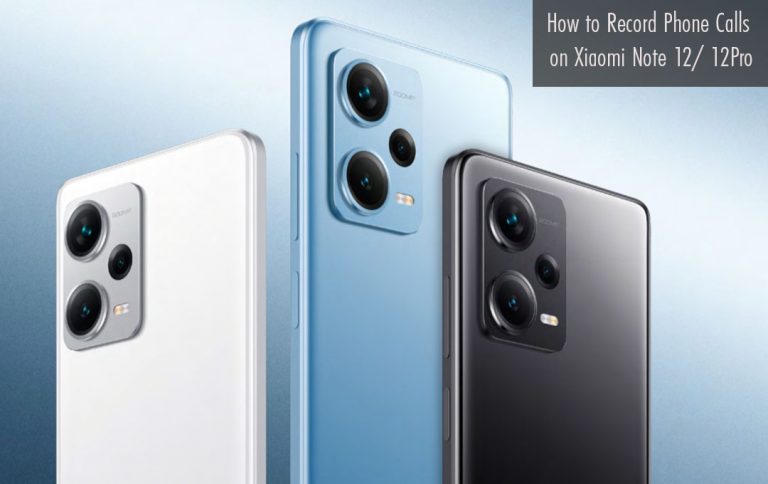
How to Record Phone Calls on Xiaomi Note 12/12Pro

0

How to Record Phone Calls on Xiaomi Note 12/12Pro – Users of Xiaomi Note 12/ 12Pro will one day wish to record a phone call for any purpose. Xiaomi 12 users will want to know if they can record calls. They will also need steps on how to record phone calls. As well as the Xiaomi 12 call recording setting. Recording a phone call is a good idea, you can get back to it to remember what the discussion is about.

How to Record Phone Calls on Xiaomi Note 12/ 12Pro

However, make sure you know your local laws and regulations about call recording. it is better to find out if it is legal in your location or country and ensure you have third-party consent.

Does Xiaomi Note 12/ 12Pro Support call recording?

Yes, you can record calls with your Xiaomi 12. They support call recording and you can enable it on your device with ease. you just have to keep reading through this page to know how the Xiaomi 12 call recording works.

Why can’t I record calls on my Note 12/ 12Pro?

If you are making use of the global version that is one of the main reasons you can’t record calls on your Xiaomi 12. Furthermore, the Global version of the Redmi phone comes installed with google Dialer instead of the Xiaomi contact and Dialer app. You can access call recordings on Google dialer as of now.  Google dialer is working on including it on their app.

Nevertheless, Google Dialer now has support for call recording. but it is on yet available in all countries. You will be able to use the option of recording calls if it is available in your country. You can try to update your device to the latest Android version to get the Option.

How to Record Calls on Xiaomi Note 12/ 12Pro

You can make use of the steps below if you are using the EU MIUI version on your device. The steps are provided below:

  1. Lunch the Phone app on your Xiaomi
  2. Click the “three-line menu” in your Phone app, it is located at the bottom left corner.
  3. After that, select “Call Recording” from the menu.
  4. Now enable the “Call Recording Notification” and “Record calls Automatically” options
  5. You can also set your app to record the number of your choice. All you need to do is to click on the Number(s) selected – Custom List – Add Numbers.

If you do not find these features on your phone, you can make use of a second-party app.

Xiaomi Note 12/ 12Pro Call Recording App.

  1. Open Google Play Store on your device.
  2. Search for the Cube ACR app.
  3. Install the app and allow all permission.
  4. Once you have installed it, you can now follow the remaining onscreen instructions to record calls on your Xiaomi Note 12/ 12Pro

About Xiaomi Redmi Note 12

The Xiaomi Redmi Note 12 Pro comes equipped with a MediaTek Density 1080 (6 nm) chipset that has an Octa-core (2×2.0 GHz Cortex-A78 & 6×1.8 GHz Cortex-A55) with an inbuilt memory of 128GB 4GB RAM, 128GB 6GB RAM. The phone has an impressive camera setup consisting of 48MP + 8 MP + 2MP and also has 1080p@30fps camera recording.

About Xiaomi Redmi Note 12 Pro

The Xiaomi Redmi Note 12 Pro comes equipped with a MediaTek Density 1080 (6 nm) chipset that has an Octa-core (2×2.6 GHz Cortex-A78 & 6×2.0 GHz Cortex-A55) with an inbuilt memory of 128GB 6GB RAM, 128GB 8GB RAM, 256GB 8GB RAM, 256GB 12GB RAM. The phone has an impressive camera setup consisting of 50 MP + 8 MP + 2MP and also a 4K camera recording.

Check out:

How to Record Phone Calls on Xiaomi 12T/12T Pro

0

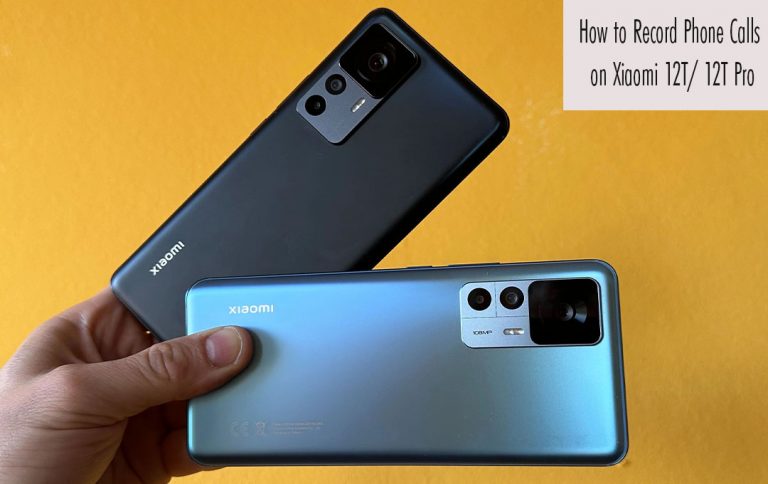
How to Record Phone Calls on Xiaomi 12T/12T Pro – Users of Xiaomi 12T/12T Pro will one day wish to record a phone call for any purpose. Xiaomi 12 users will want to know if they can record calls. They will also need steps on how to record phone calls. As well as the Xiaomi 12 call recording setting. Recording a phone call is a good idea, you can get back to it to remember what the discussion is about.

How to Record Phone Calls on Xiaomi 12T/ 12T Pro

Well, make sure you know your local laws and regulations about call recording. it is better to find out if it is legal in your location or country and ensure you have third-party consent.

Does Xiaomi 12T/12T Pro Support call recording?

Yes, you can record calls with your Xiaomi 12. They support call recording and you can enable it on your device with ease. you just have to keep reading through this page to know how the Xiaomi 12 call recording works.

Why can’t I record calls on my 12T/12T Pro?

If you are making use of the global version that is one of the main reasons you can’t record calls on your Xiaomi 12. Furthermore, the Global version of the Redmi phone comes installed with google Dialer instead of the Xiaomi contact and Dialer app. You can access call recordings on Google dialer as of now.  Google dialer is working on including it on their app.

Nevertheless, Google Dialer now has support for call recording. but it is on yet available in all countries. You will be able to use the option of recording calls if it is available in your country. You can try to update your device to the latest Android version to get the Option.

How to Record Calls on Xiaomi 12T/ 12T Pro

You can make use of the steps below if you are using the EU MIUI version on your device. The steps are provided below:

  1. Lunch the Phone app on your Xiaomi
  2. Click the “three-line menu” in your Phone app, it is located at the bottom left corner.
  3. After that, select “Call Recording” from the menu.
  4. Now enable the “Call Recording Notification” and “Record calls Automatically” options
  5. You can also set your app to record the number of your choice. All you need to do is to click on the Number(s) selected – Custom List – Add Numbers.

If you do not find these features on your phone, you can make use of a second-party app.

Xiaomi 12T/12T Pro Call Recording App.

  1. Open Google Play Store on your device.
  2. Search for the Cube ACR app.
  3. Install the app and allow all permission.
  4. Once you have installed it, you can now follow the remaining onscreen instructions to record calls on your Xiaomi 12T/ 12T Pro

About Xiaomi Redmi 12T

The Xiaomi Redmi 12 Pro comes equipped with a Mediatek Dimensity 8100-Ultra chipset that has an Octa-core (4×2.85 GHz Cortex-A78 & 4×2.0 GHz Cortex-A55) with an inbuilt memory of 128GB 8GB RAM, 256GB 8GB RAM. The phone has an impressive camera setup consisting of 108MP + 8 MP + 2MP and also has 1080p@30/60fps camera recording.

About Xiaomi Redmi 12T Pro

The Xiaomi Redmi 12 Pro comes equipped with a Qualcomm SM8475 Snapdragon 8+ Gen 1 (4 nm) chipset that has an Octa-core (1×3.19 GHz Cortex-X2 & 3×2.75 GHz Cortex-A710 & 4×2.0 GHz Cortex-A510) with an inbuilt memory of 128GB 8GB RAM, 256GB 8GB RAM, 256GB 12GB RAM. The phone has an impressive camera setup consisting of 200MP + 8 MP + 2MP and also a 1080p@30/60fps, HDR camera recording.

Check Out: